I’ve had a Sonos setup in my home for years. It’s been one of those bits of tech that just works, which is exactly why I procrastinated for so long on segregating it onto a dedicated VLAN.
Then I finally got around to rationalising the home network on the UDM Pro, and Sonos predictably became the thing that didn’t work. If you’ve tried this, you’ll know the symptoms: the Sonos app on your phone (which lives on the trusted network) can’t see the players, or it sees them but can’t control them, or it controls them but loses them thirty seconds later, or — my favourite — everything works until the first group change, at which point half the players disappear and you’re left with a kitchen speaker playing Mogwai to nobody.
This post is the end-to-end configuration I ended up with, done entirely through the Unifi Network controller app (screenshots taken from Network v10.3.55) — no SSH, no custom scripts, no boot-persistence hacks. Every setting below is something you can click through in the UniFi Network controller. It’s written for UniFi OS on a UDM Pro in 2026, but the principles carry across to the UDM Pro SE etc.
Why Sonos is a VLAN problem
Sonos is built around two assumptions that were reasonable in 2005 and have aged like milk: that your network is a single flat broadcast domain, and that the controller and players can all talk to each other over multicast.
Specifically, Sonos uses:
- mDNS (
224.0.0.251:5353) for device discovery — the players advertise themselves, the controller listens. - SSDP (
239.255.255.250:1900) for UPnP device discovery — used for player-to-player coordination as well as controller discovery. - A large pile of unicast TCP and UDP ports for actual control, streaming, and (if you use SonosNet rather than pure WiFi) inter-player mesh traffic.
Multicast is the core problem. By definition, multicast traffic does not cross VLAN boundaries. The broadcast domain ends at the VLAN edge, so a controller on one VLAN literally cannot see the discovery packets from a player on another. Firewall rules alone won’t help you, because there’s no unicast traffic to permit yet — the two sides haven’t discovered each other.
The good news is that UniFi has a built-in mDNS proxy option, which, in combination with the right firewall rules, turns out to be sufficient for Sonos in most home setups. The key word is combination — the mDNS proxy is necessary but not sufficient. You need both layers, and you need the firewall rules to be properly scoped to the Sonos ports rather than a blanket allow.
The things to skip
A quick tour of the dead ends, because I wasted time on each of these before settling on the final setup:
Giving up and putting Sonos back on the default VLAN. The path of least resistance and the one a lot of forum threads land on. Works fine if your threat model is “none.” Mine isn’t — I want the Unifi cameras, a Hue bridge, Nest devices and the Sonos players all on networks that can’t pivot into my laptops, servers, desktop and mobile phone.
Allowing any-any traffic between VLANs “just until it works.” Completely defeats the purpose of segregation. If you end up here, you may as well not have the VLAN.
Disabling client isolation on the Media Devices VLAN. Orthogonal to the problem. Client isolation is about device-to-device traffic within a single VLAN. Unless you had it enabled (and for Sonos, you shouldn’t — the players need to talk to each other), it’s not relevant.
The real fix has two layers: UniFi’s mDNS proxy to handle discovery, and a narrowly scoped set of firewall rules to permit the unicast control traffic between VLANs.
The architecture
Here’s the setup:
┌──────────────────────────────────────────────────┐
│                       UDM Pro                    │
│                                                  │
│  ┌──────────────┐           ┌─────────────────┐  │
│  │   Default    │           │  Media Devices  │  │
│  │   VLAN       │           │  VLAN           │  │
│  │              │           │                 │  │
│  │  • Phone     │◄─────────►│                 │  │
│  │  • Laptop    │           │  • Sonos × N    │  │
│  │  • Tablet    │           │                 │  │
│  └──────────────┘           └─────────────────┘  │
│        ▲                             ▲           │
│        │                             │           │
│        └──── mDNS proxy ─────────────┘           │
│         (enabled on both networks)               │
└──────────────────────────────────────────────────┘
Controllers (phone, laptop, tablet) live on the Default VLAN (called “Primary LAN” in the screenshots below). Sonos players live on a Media Devices VLAN. Traffic from the default network to Media Devices is explicitly permitted for the Sonos ports; traffic from Media Devices back to the default network is denied by default, with one narrow exception for return traffic on established sessions.
Step 1: Enable mDNS proxy on both networks
This is the single most important toggle. In the UniFi Network controller, open the settings for Networks and enable the Gateway mDNS Proxy. Ensure this is enabled for both the Default network and Media Devices network. I’ve selected the Custom option so I can specifiy which VLANs I want to have this enabled for but you can select Auto instead, and this will enable it for ALL networks. You can also select the Specific Service Scope and limit what kinds of device discovery are supported (there is already a specific option for Sonos devices). For simplicity, and because I have other media players on this network and not just Sonos devices, I’ve left the default All Service Scope option selected.
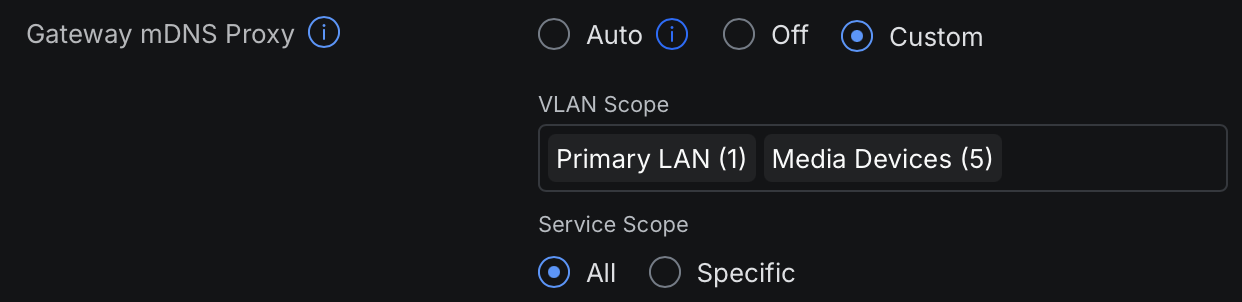
Once enabled, mDNS advertisements will be forwarded between the two VLANs. At this point, if you open the Sonos app on a phone connected to the default network, you may already start to see players appear — but discovery alone isn’t control. The app will still fail to actually do anything with them until the firewall rules are in place.
Step 2: Create the Sonos firewall policies
Firewall rules without port groups work but they’re miserable to maintain. Create two policies — one for TCP and one for UDP — so the rule definitions stay readable and you’ve got a single place to edit if Sonos ever changes their port list.
In the controller, go to Settings → Policy Table → Create New Policy.
First policy:
- Policy Type: Firewall
- Name:
Allow Default → Media Devices Sonos TCP - Source Zone ‘Internal’, select ‘Network’ and select Default network
- Port: List
- New List Name Sonos Ports TCP
- Ports:
445,1400,1410,1443,3400,3401,3445,3500,4070,4444,7000 - Action: Allow
- Desination Zone: ‘Internal’, select ‘Network’ and select Media Devices network (note: once selected the ‘Auto Allow Return Traffic’ option should become automatically selected)
- Port: List, select the Sonos Ports TCP list created above
- IP Version: Both
- Protocol: TCP
- Connection State: All
- Schedule: Always
Second policy:
- Policy Type: Firewall
- Name:
Allow Default → Media Devices Sonos UDP - Source Zone ‘Internal’, select ‘Network’ and select Default network
- Port: List
- New List Name Sonos Ports UDP
- Ports:
136-139,1900,1901,2869,5353,6969,10243,10280-10284 - Action: Allow
- Desination Zone: ‘Internal’, select ‘Network’ and select Media Devices network (note: once selected the ‘Auto Allow Return Traffic’ option should become automatically selected)
- Port: List, select the Sonos Ports UDP list created above
- IP Version: Both
- Protocol: UDP
- Connection State: All
- Schedule: Always
These are the ports Sonos uses for UPnP control (1400/1443), internal RPC (3400 range), the legacy 4444 control port, SSDP (1900), mDNS (5353), SonosNet (6969), and NetBIOS/SMB for the music library path (136-139, and if you use an SMB library add 445 here too). Sonos publishes the canonical list in their own support documentation and it occasionally changes, so worth a sanity check against the current version when you set this up.

Making sure the ‘Auto Allow Return Traffic’ option is selected on both firewall policies is important. Sonos control sessions are bidirectional — the player sends UPnP events back to the controller. If your default posture is “Media Devices can’t talk to the Default network” you’ll block the return traffic and everything will feel broken in subtle ways: an app that connects but loses state, streams that work for two minutes before dying, grouping changes that half-apply. Permitting return traffic gives you the return path without opening the Media Devices VLAN to your main network. The Network controller will automatically create two corresponding return traffic firewall rules for this very purpose, as long as this option is checked.
Step 3: Enable IGMP snooping
Not strictly required but worth doing. IGMP snooping doesn’t make multicast cross VLANs — that’s what the mDNS proxy is for — but it prevents multicast from flooding every port within a VLAN, which matters once you’ve got a dozen-plus Sonos players plus other media devices all chattering on the same segment.
Enable IGMP Snooping in the Networks section.

Apply it to both the Default and Media Devices networks.
Verifying it actually works
A few checks that go beyond “the Sonos app opens”:
Discovery works from a cold start. Force-quit the Sonos app on your phone, turn WiFi off and on, reopen the app. All players should appear within a few seconds. If they only appear after a long delay or you have to pull-to-refresh repeatedly, mDNS reflection isn’t enabled on one of the networks.
Grouping survives. Group the living room and kitchen. Play something. Ungroup them. Group them the other way round. Repeat a dozen times. On a broken setup, one of the speakers will drop out of the app within 30 seconds. On a working setup it stays rock solid.
TuneIn and streaming services don’t time out. Streams that start fine and then die after 2–5 minutes point to missing return traffic on the firewall side. If your radio stations work for an hour, you’ve got the established/related rule right.
Survives a UDM Pro reboot. Everything above is persistent GUI configuration, so this shouldn’t be a problem, but worth verifying once. Reboot the UDM Pro, wait for it to come back, confirm Sonos still works end-to-end without any intervention.
Why bother
You could just put Sonos on the main network and be done with it. Lots of people do. If your threat model is “none” that’s a fine choice.
Mine isn’t. There’s lots of smart-home and IoT kit here that I don’t really trust to be well-behaved, let alone secure. I’d rather contain it, accept the 30 minutes of one-off configuration, and have a network where “something compromised on the IoT side” doesn’t equal “attacker on the same L2 segment as my laptop.”
The real lesson, which applies beyond Sonos: the hard part of VLAN segregation is almost never the VLANs themselves. It’s the long tail of devices and protocols that assume a flat network and need a little help crossing the boundary. Sonos is just a particularly visible example, and — as it turns out — an entirely solvable one without ever opening a terminal.